MGO arrives with hundreds of mods already installed and configured, so you never have to add anything yourself. But part of the fun of a mod list is making it your own, and sooner or later you’ll spot something on Nexus that you feel you can’t live without. Adding a mod through Mod Organizer 2 is straightforward once you’ve done it once, but there are risks to be aware of. We’ll walk through it using a real example.
Living on the edge
Everyone’s favorite Bosmer1
Song of the Green (Auri Follower), created and voiced by Waribiki, is one of the most beloved follower mods for Skyrim, and a personal favorite of mine. It adds Auri, a fully voiced Bosmer archer with over a thousand lines of dialogue, an approval system, banter with other custom followers, a mini-quest, her own mount, and an optional romance. You’ll find her waiting in Falkreath Hold, northwest of town. Look for Auri’s Pod on your map.
A follower like this takes a bit more thought to place than an SKSE plugin or a simple asset replacement would. It adds an NPC and touches records that other mods depend on, so it belongs with the other custom followers (Inigo, Lucien, Sofia, etc.), at the end of that group. More on why that spot in a bit.
Download it
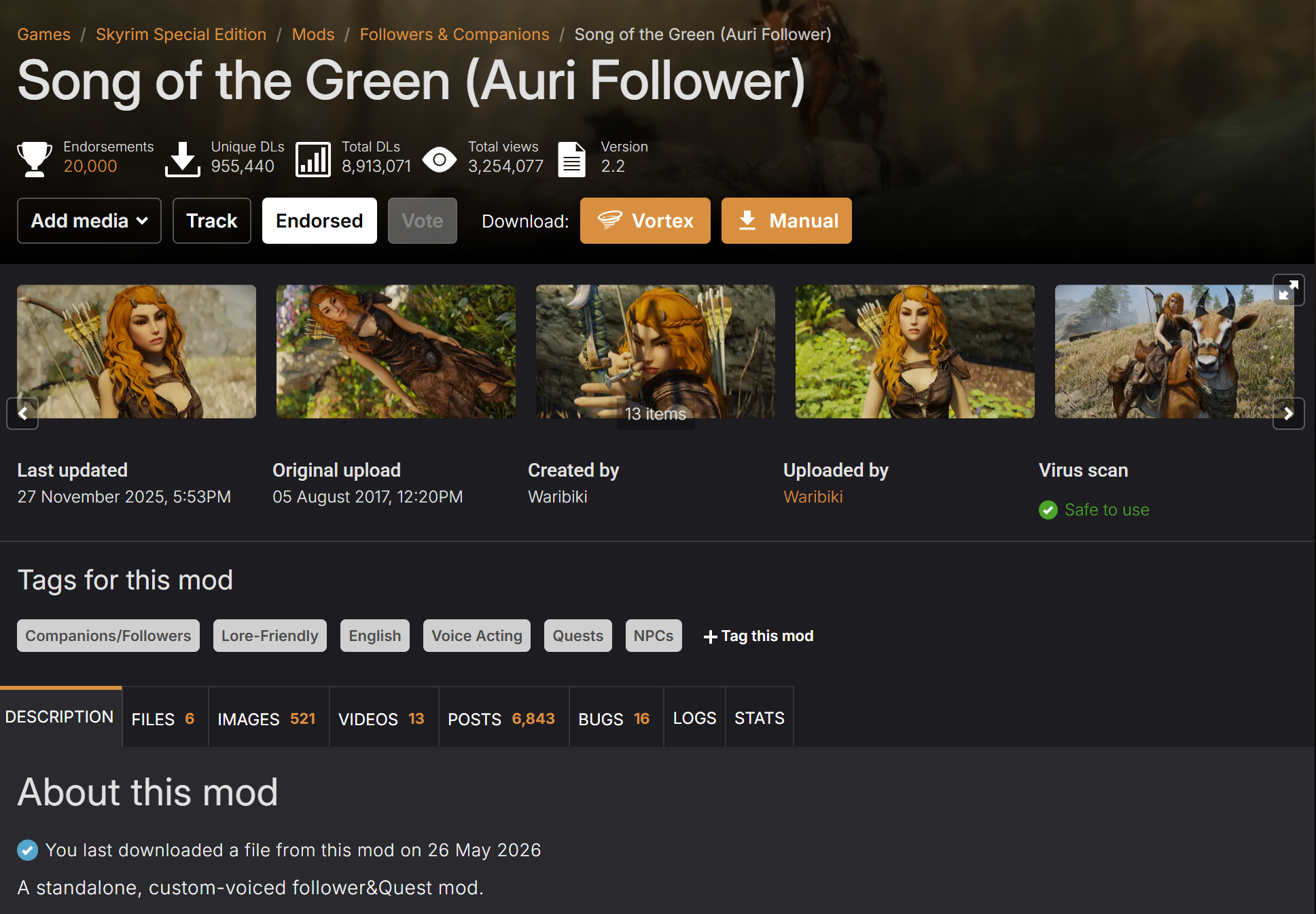
- Open the mod’s Nexus page.
- Click Mod manager download or Manual (see below).
- After any wait timer, your browser hands the file off to MO2, and it shows up in MO2’s Downloads tab on the right, next to Plugins.
Managed or manual?
Mod manager download only works if MGO’s MO2 installation is registered to handle Nexus (nxm://) links. If clicking it does nothing, and you’d like it to, open MO2’s settings, find the Nexus section, and and click the button to associate with “Download with Manager” links.
You can also use Manual download on Nexus, then in MO2 click the Install a new mod from an archive toolbar button, and pick the file you downloaded. Personally, I always install mods manually because I have a bunch of MO2 installations, and I can’t keep track of which (if any) are associated with Nexus links at any given time.
Install it in MO2
- In the Downloads tab, double-click the file you just downloaded. MO2 unpacks it and opens the install dialog.
- Give it a clear name and click OK. The default name is usually fine, but you may want to add a little something in front (see below).
- If a mod ships with installer options, you’ll get a FOMOD wizard here instead. These are step-by-step screens where you choose installation options. Read each step, make your choices, and finish.
Your new mod now appears in the left pane, disabled, at the very bottom of the list.
Protect it from Oblivion
[NoDelete] and a space to its name in the left pane, so [NoDelete] Song of the Green (Auri Follower) in this case. Wabbajack leaves any mod tagged that way alone when it reinstalls. You can add the tag when you name the mod during installation, or rename the mod later (right-click it in the left pane and choose Rename).Enable it and set its load order
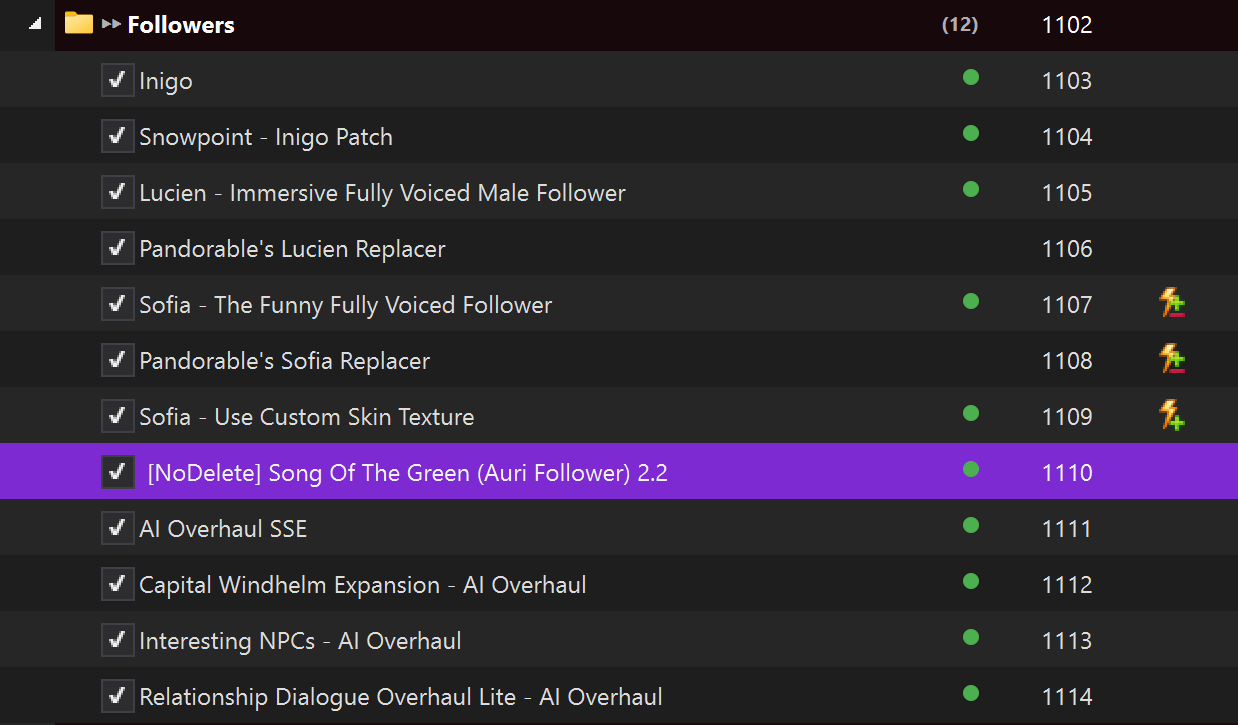
Newly installed mods appear at the bottom of the left pane. We want it grouped with the other custom followers instead. Where a mod sits in the left pane sets its priority (mods lower down win conflicts with mods above them), so keeping it grouped with related mods keeps the list manageable and less likely to make trouble.
- Make sure the mod’s checkbox is checked.
- Find the Followers section. The filter box at the bottom of the left pane makes it easy to locate. (Try searching for “Sofia”.)
- Drag your new mod so it sits beneath the other custom followers, just below Sofia’s entries and above AI Overhaul SSE.
Why not just add it to the end?
It’s commonly recommended to leave added mods at the bottom of the list. For some mods it may prove to be harmless, but it’s not ideal. Sooner or later, that habit is likely to get you into trouble.
MO2 keeps two separate orders, and both treat the bottom as a position of power.
- The left pane decides which mod’s loose files (meshes, textures, scripts) win when two mods include the same one. The lower mod wins.
- The right pane decides the order in which plugins (
.esp/.esl) load, which settles whose edits to the game’s records (NPCs, cells, etc.) win. Again, later in the list wins.
A carefully curated list like MGO keeps its bug fixes, patches, compatibility files, and outputs near the bottom so they win every conflict. Drop a new mod at the very end and it can override those.
So the better guidance is to put a mod next to similar mods. Those are the mods it’s most likely to conflict with, and that portion of the list has already been sorted with intent. It also keeps the list something you can still make sense of six months from now.
Auri is a follower mod that adds an NPC and edits NPC-adjacent records, and MGO deliberately orders its NPC and AI mods (like AI Overhaul SSE and its patches) so the right ones win. Drop her at the very bottom and she’d override some of that. Put her next to Inigo, Lucien, and Sofia, and she lands where she ought to.
When a mod’s ideal home is less clear-cut, a few rules of thumb:
- Group by function. A texture replacer goes among other texture mods, a combat tweak among the combat mods, and so on.
- A replacer goes below what it replaces (so it wins), but still above any fix or patch that’s meant to override it (so the patch wins).
- Let MO2 show you any conflicts. The Conflicts column flags mods that overwrite (or are overwritten by) others, and right-clicking a mod and choosing Information → Conflicts lists exactly which files clash and which one currently wins. Move the affected mods up or down until the winners are the ones you want.
- Self-contained mods don’t care. Plenty of VR mods are just an SKSE plugin (or a mod that only adds content) with nothing to fight over. For those, position doesn’t technically matter, but your list will be easier to maintain if you still order them logically.
The right pane works much the same, but MGO and the other Synergy lists have a rule for that. Let’s talk about it.
Sync the plugins to match
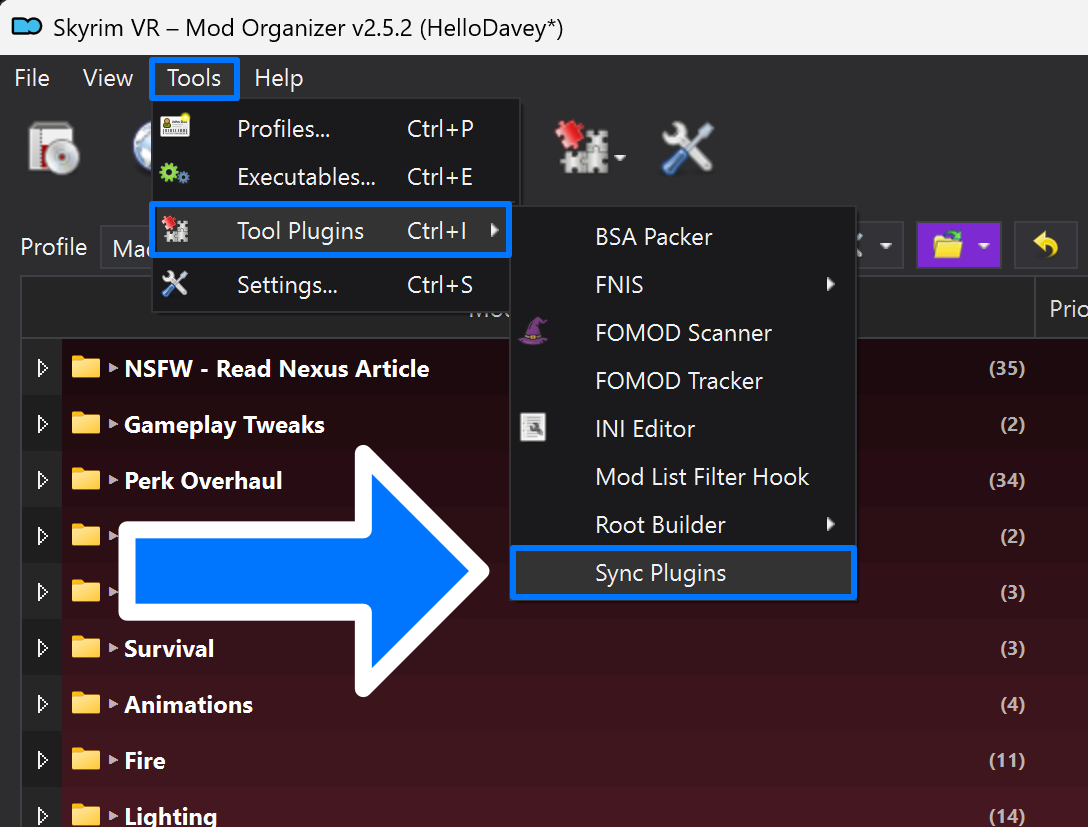
Once your mod is settled on the left, its plugin, if any, should sit in the matching spot on the right. If a mod adds a plugin (an .esp or .esl), first make sure it’s checked in the right pane. Then, instead of dragging plugins around by hand, let Sync Plugins do it. It’s an MO2 tool that reads your left-pane mod order and reorders the plugins to match. Run it from the menu bar at Tools → Tool Plugins → Sync Plugins, and your plugins snap into the same order as the mods that provide them.
Sync, don't LOOT
Play it
A follower doesn’t need much in the way of configuration. Just go and recruit her. Head to Falkreath Hold, find Auri’s Pod (it’s on the map), and introduce yourself. A few things worth knowing:
- She’s an archer, so keep her stocked with arrows, or she’ll resort to punching dragons (her words). She can buy bone arrows (her favorites) at the Drunken Huntsman, or you can craft them, but she’ll use any arrows you give her.
- To give her other gear that she’ll actually use, go through dialogue: “Let’s talk about traveling together” → “Let me check your gear.” (Moving items to her normal inventory just stores them.)
- Her quest, approval, and the optional romance all unfold through conversation as you play. The Nexus page has the full rundown.
- Don’t forget to go back and endorse the mod on Nexus!
That’s the process: download, install, place, sync, and play. Every mod you add follows that same general process, even if some of the specifics differ.
Sorry, Faendal. ↩︎