If you play on a standalone headset (Quest, Pico, Vive Focus), there’s a good chance you reach your PC through Virtual Desktop . (And if you don’t, you should consider it.) It’s one of the most popular ways to stream PCVR to a wireless headset, and its settings have a big impact on your experience, irrespective of the game engine.
Let’s look at a few of the most significant adjustments you can make, in both the Virtual Desktop Streamer app on your PC and in the companion app on your headset.
Is this for you?
This page is for folks using standalone headsets with Virtual Desktop. On a wired Link cable or a SteamVR-native headset, none of it applies. (Guidance for SteamVR-native headsets is on the way.)
Virtual Desktop is paid software. Free alternatives like ALVR, Steam Link, and Meta Horizon Link exist, but the settings below are specific to VD.
Quest Beta version 1.34.20
#announcements channel in the Virtual Desktop Discord
for installation instructions.First, the runtime (PC app)
Before chasing frames, make sure Virtual Desktop hands Skyrim off to the right runtime: VDXR. That setting is in the PC app, as mentioned on the OpenComposite (Unleashed) page. Set that before you start tuning anything else.
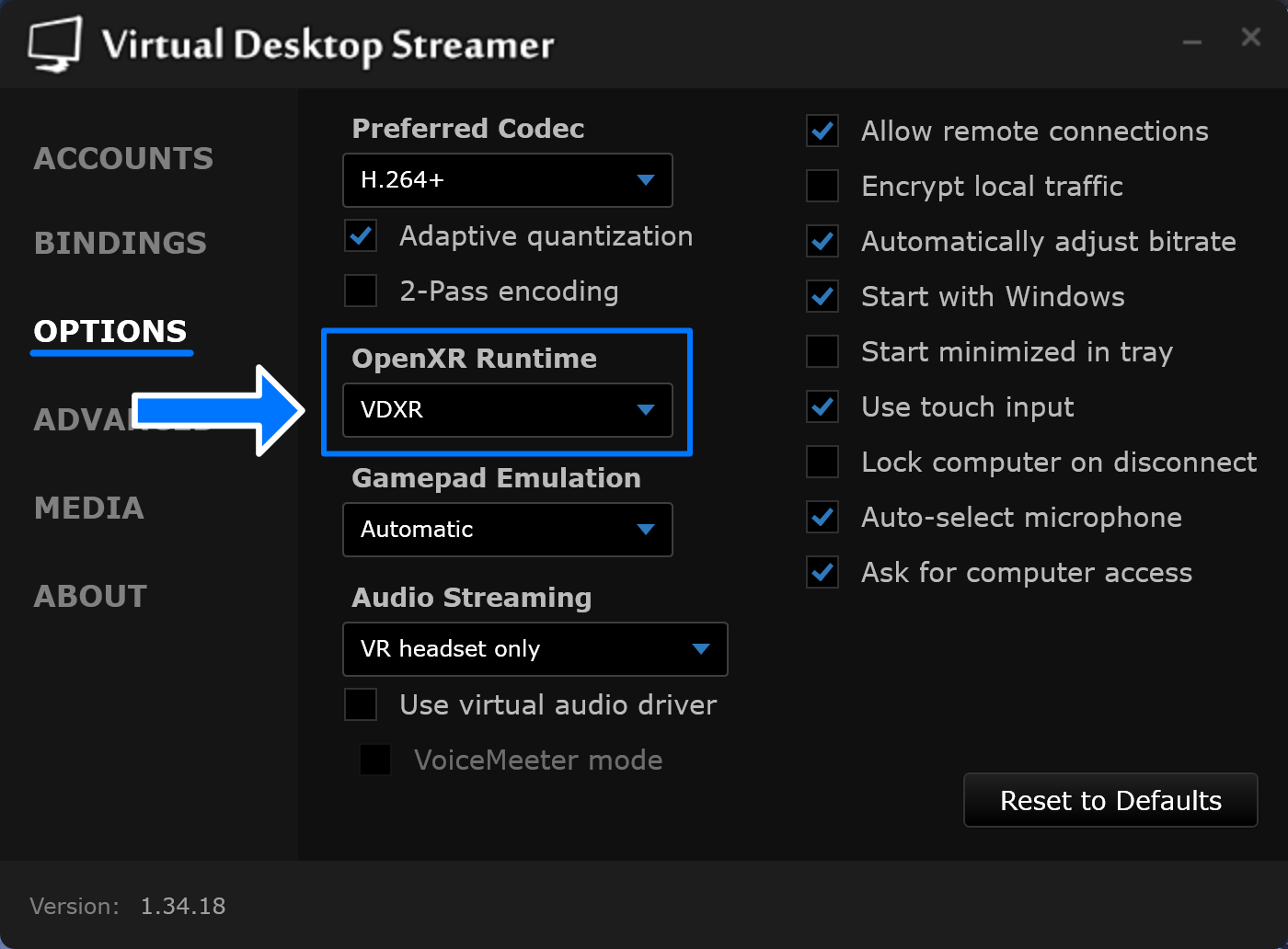
Settings to know
Virtual Desktop has a lot of other performance settings to tweak. Here are some of the biggest.
A moving target
Preferred Codec (PC)
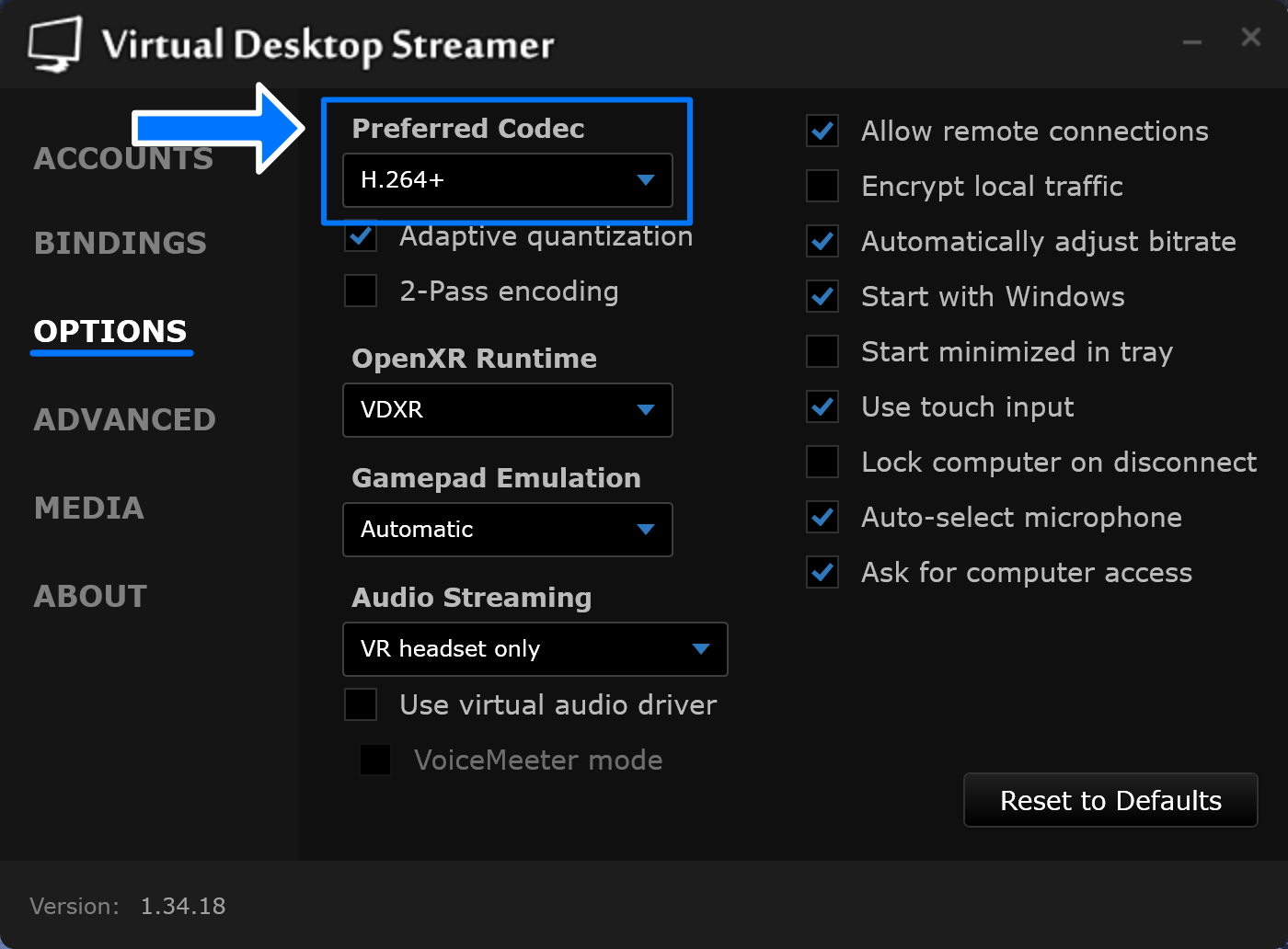
Codec choice is not primarily about the GPU load, but rather about clarity and latency. Personal taste definitely plays a role here, so don’t be afraid to experiment with the various options.
- HEVC is a reasonable default if your video card or headset can’t do AV1. There’s little reason to pick HEVC over AV1 if you have the option.
- AV1 looks better at the same bitrate, and it’s better at holding off color banding in dark scenes (not that Skyrim has any of those). It requires a Quest 3 (or newer, if there ever is such a thing) and an AV1-capable encoder—NVIDIA RTX 40-series, AMD RX 7000-series, or Intel Arc.
- H.264+ is has to run at a higher bitrate (demanding more of your network) to match what HEVC and AV1 manage with less. Its upside is the lowest decode latency and crisper details than AV1 in certain circumstances. AV1 can go soft on things like foliage, where a high-bitrate H.264+ stream (say, 400 Mbps) better retains the fine details. If your network can handle it, you may want to give that a try.
Field of View (PC)
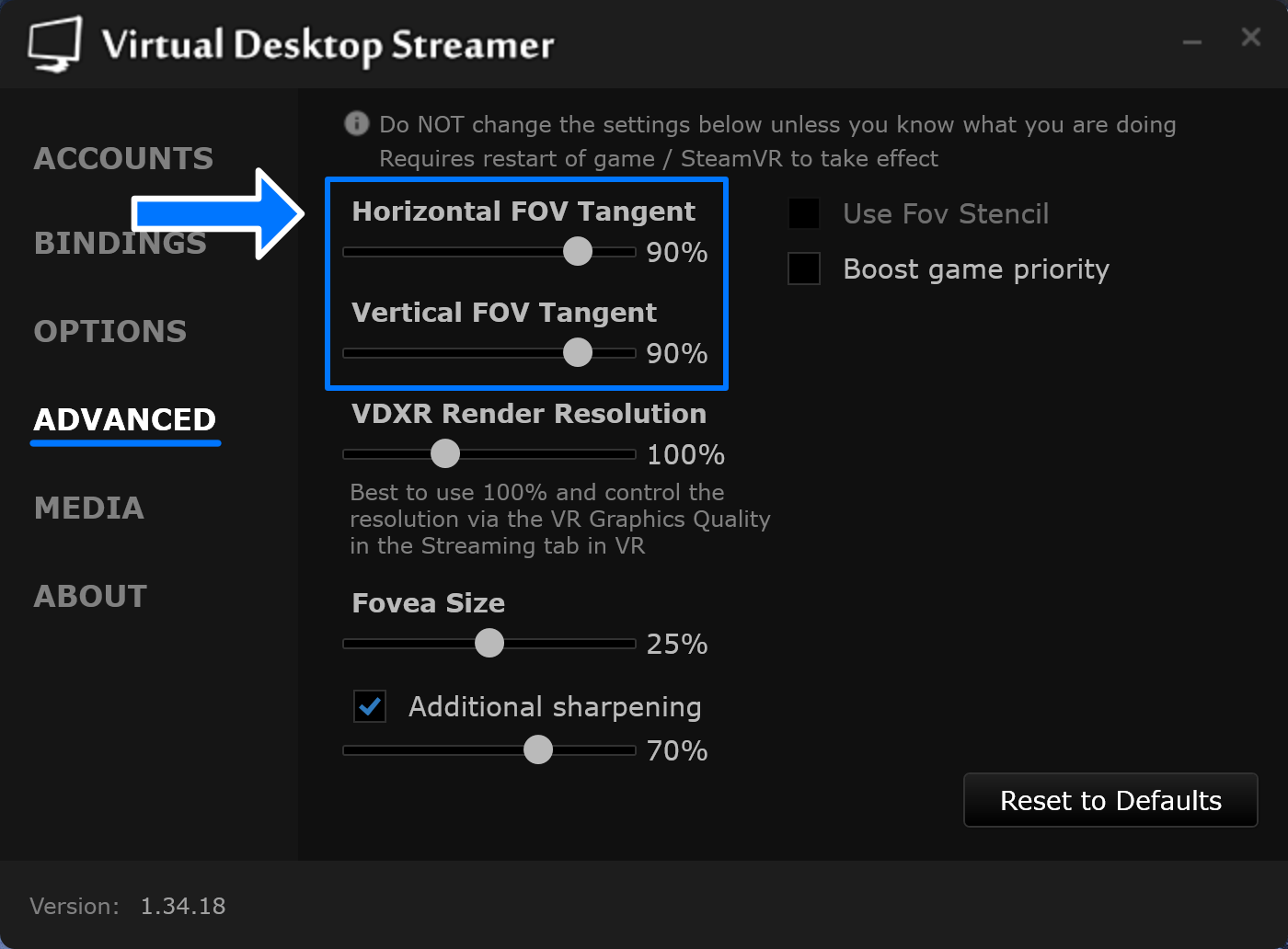
Inside the PC app’s Advanced tab are two wolves sliders: Horizontal FOV Tangent and Vertical FOV Tangent. They control how wide of a FOV actually gets rendered, and they default to 100 (your headset’s full width). Dial them down to around 90 and your GPU renders fewer pixels out toward the edges of your vision, for a decent performance boost.
A feature, not a bug!
Bitrate (HMD)
The bitrate determines how clear the image looks crossing your network. (Blocky or smeary motion is more of a bitrate issue than a graphics performance one.) With HEVC or AV1, somewhere around 100–150 Mbps over Wi-Fi 6/6E is a common sweet spot. H.264+ can go much higher if your connection is rock-solid, though past around 400 Mbps the clarity-for-latency trade-off may stop seeming to be worth it.
If you set a high bitrate by hand, switch off Automatically adjust bitrate in the PC app (Options screen), or VD will likely lower it again on its own. Blocky or smeary motion is more of a bitrate issue (or a SpaceWarp side-effect), not a performance one. Push the bitrate higher if your router can take it, and back off if you start seeing stutter. (A dependable network matters more than anything else here. A general guide to wireless streaming is on the way soon.)
VR Graphics Quality (HMD)
This sets the render resolution: how many pixels your GPU outputs each frame before Virtual Desktop encodes and streams them to your headset. Bitrate is about the network, and this one is about the pixels. The options are Potato, Low, Medium, High, Ultra, Godlike.
High is a reasonable starting point for MGO. Drop to Medium if you’ve exhausted other frame-saving options and still need more. Treat Ultra and Godlike as something for folks with video cards that cost as much as a car. Whatever you choose, upscaling helps: Use the options in Community Shaders (or OCU) to render the scene internally at a lower resolution and reconstruct it up to whatever tier you pick, so you can aim higher for less render cost1. Just remember to upscale in one place, never both.
Upscaling saves render cost, but encode/network/decode still scales with output resolution. ↩︎
VDXR Render Resolution (PC)
A second resolution control, in the PC app’s Advanced tab, that scales the render resolution for the VDXR runtime specifically. Leave it at 100% unless you have a specific reason not too. It compounds with the VR graphics quality tiers and any other upscaling you use, so it’s easy to end up with a super-high target resolution that you didn’t intend if you’re not careful. So, generally speaking, just use the graphics quality tiers for this.
Synchronous Spacewarp (HMD)
SSW, Virtual Desktop’s version of motion smoothing, generates extra frames on the headset to paper over a less-then-smooth frame rate. Leave it on Automatic and it engages when you can’t hit your refresh rate; Always enabled leaves it always synthesizing up from half of your target FPS (a locked 45 fps becomes a smooth-feeling 90). Never run it alongside OCU’s ASW or any other frame-gen tech, though. Pick one.
Refresh Rate (HMD)
Increase color vibrance (HMD)
Recommended GPU drivers
Virtual Desktop uses your GPU to compress every frame before it crosses the air, so the driver version is relevant beyond raw graphics performance. The Virtual Desktop team keeps a list of the versions they’ve found most reliable. These are their picks as of April 8, 2026. For up-to-date recommendations, check the #announcements channel on the Virtual Desktop Discord
.
| GPU | Recommended driver |
|---|---|
| NVIDIA RTX 30 / 40 Series | 581.94 (hotfix) |
| All other NVIDIA GPUs | Latest |
| AMD RX 400 / 500 / Vega | 20.10.1 |
| AMD RX 5000 / 6000 | 25.3.1 |
| AMD RX 7000 / 9000 | 26.3.1 |
The Virtual Desktop Discord
#start-here), troubleshooting steps, and support channels (#general-support-forum, #general-support, #quest-support).