Mad God’s Overhaul uses Community Shaders (specifically Troned’s unofficial VR fork) for the advanced graphical features behind its dramatic visuals. It needs to compile shaders ahead of time (covered in Compiling Shaders, but starting in MGO 4.0 RC3, precompiled shaders for all of the CS presets in the list are built in. You can tune your settings at any time from the in-game CS settings overlay, but keep in mind it may trigger a re-compile, which can take 10 minutes or more.
Press END on the keyboard (physical or virtual) while Skyrim VR is running to open the Community Shaders settings panel.
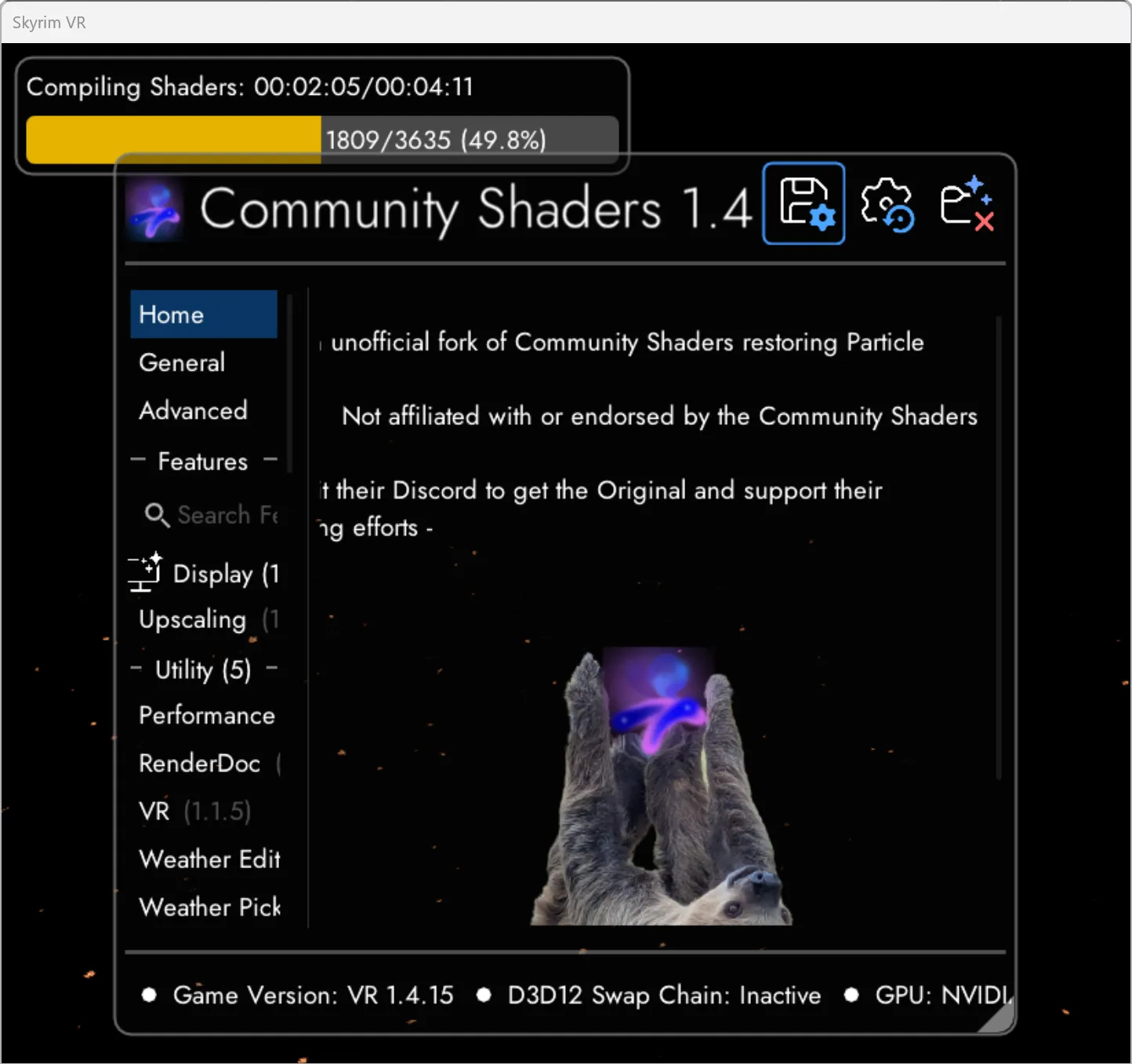
You can make a variety of adjustments from this settings overlay, but the Performance and Quality presets in MGO represent a reasonable balance for most players. Feel free to read documentation, Nexus posts, Discord posts, etc. and tweak to your heart’s content. Fair warning though: With everything cranked up, CS can make even the mightiest machine howl in pain (figuratively speaking).
Finding your way around the overlay
The overlay has two modes to choose from in its Home section:
- Essentials shows just the options you’re most likely to touch. It’s the default, and it’s the right place to start if the full pile of toggles and sliders looks overwhelming. (Reading every tooltip is, in Troned’s words, almost worth a chapter of your favorite book.)
- Advanced unlocks everything, for when you cannot abide simplicity.
If you’d rather always open straight into Advanced, you can set that in your user settings.
Point or drag?
ParticleTroned’s recommendations
Troned, who maintains the Community Shaders fork that MGO uses, has published his own recommendations for which features to run. If you’d like to mess around with individual features, this makes a great starting point. The rough per-frame costs below come from his installation notes , though the exact impact depends on your hardware and resolution.
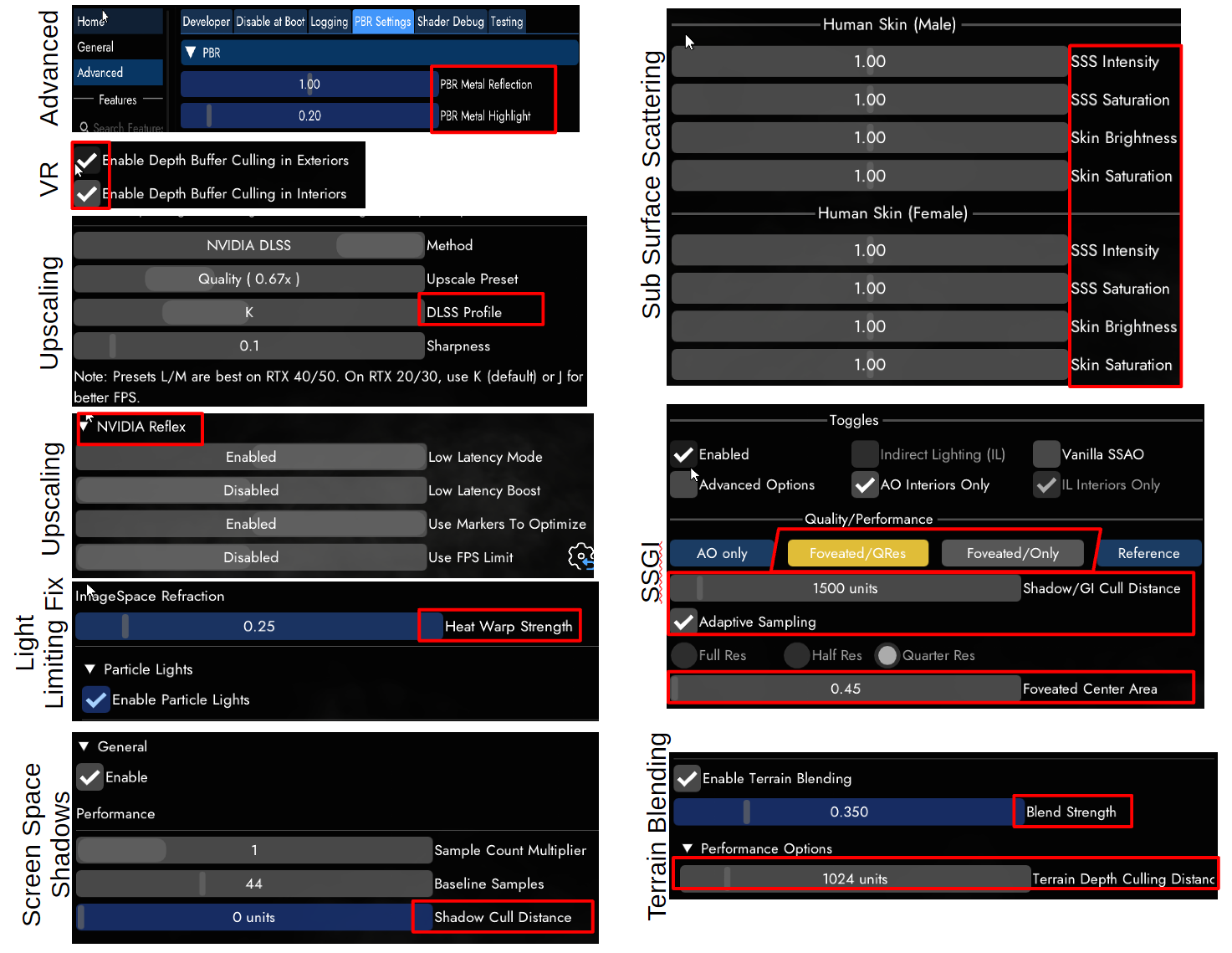
Worth turning on. Troned calls the first two absolute must-haves:
- Terrain Blending (about 0.3 ms) blends objects into the ground instead of leaving them looking like they’re perched on top of it. Its culling distance is fine at the default 1024, or drop it to 512 to save a little more.
- Screen Space Shadows (about 0.4 ms) adds grounded contact shadows. It can show minor artifacts in VR, which you can rein in by lowering its culling distance. (He suggests around 10000).
- Wetterness (roughly 0.5 to 1.5 ms, depending on how hard it’s raining) makes rain, puddles, and wet surfaces look right.
- SSGI / Ambient Occlusion (about 0.5 to 0.8 ms) deepens the shading in corners and crevices. If the cost bites, switch to one of the foveated modes, or run it indoors only (his pick: AO mode, interiors only, around 1 ms).
Turn off if you need frames.
- Skylighting can cost more than 1 ms.
- Cloud Shadows runs around 0.3 ms.
Leave off for now. Troned doesn’t consider these ready for general use yet:
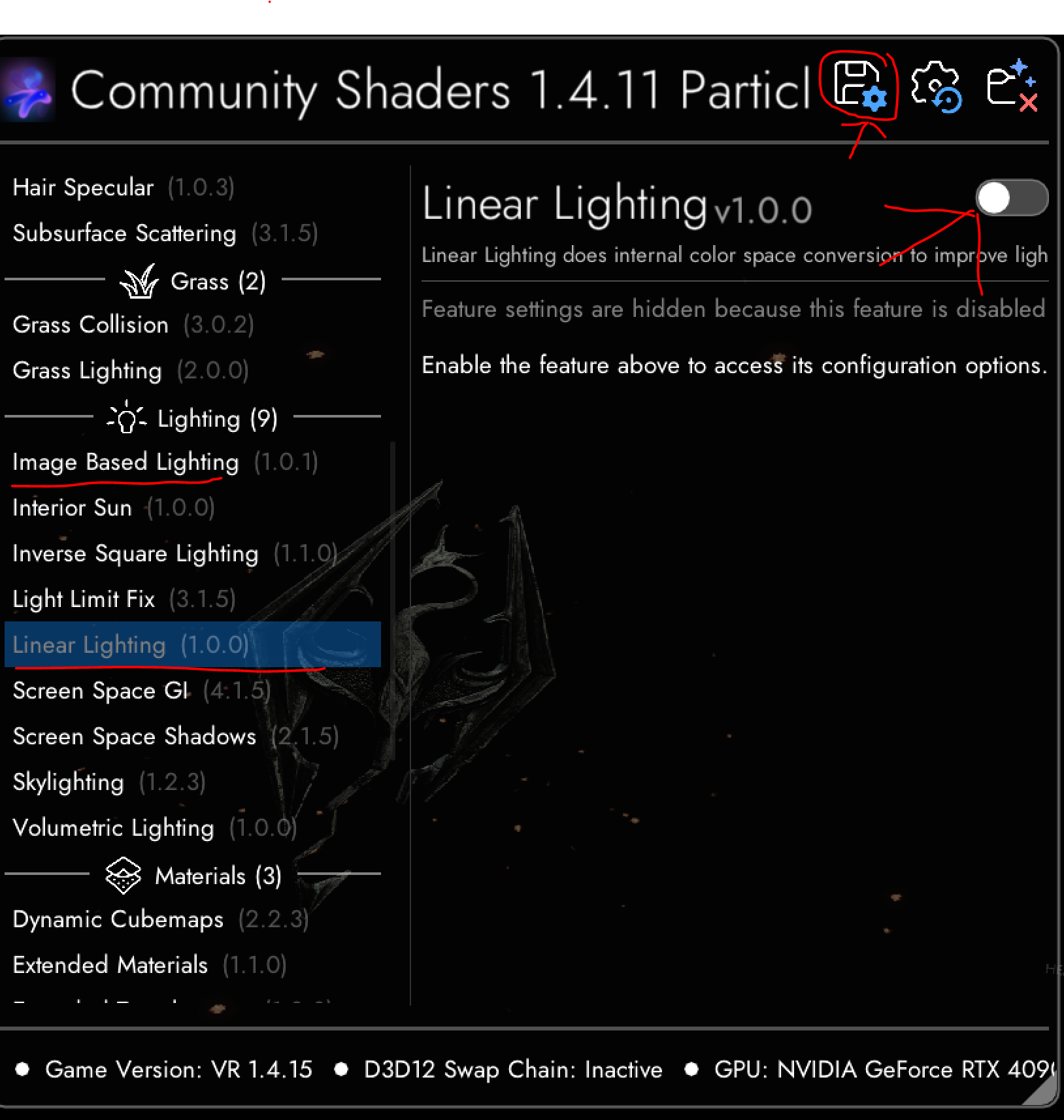
- Image Based Lighting isn’t fully baked.
- Linear Lighting is there for post-processing presets that aren’t available yet.
To switch any feature on or off, open the CS menu with END (or the appropriate controller shortcut), flip the toggle in the upper-right of the feature’s panel, save, and restart the game. As long as you hit the save button in the overlay your settings will be remembered.
VR. Keep both VR depth culling options enabled.
Upscaling. For NVIDIA cards, Troned runs either DLAA + Profile K or Quality Upscaling + Profile K, with Sharpness set to 0.1. If this proves to be too much for your GPU, you can reduce it to Balanced or Performance.
Upscale in one place, not both
NVIDIA Reflex. Turn it on and leave the defaults. It helps to clear up the momentary stutter you can get when you spin around quickly and your CPU spikes.
But wait! There’s more!
Troned’s fork keeps growing. Three new features are especially noteworthy.
Renderscale Upscaling
Renderscale Upscaling puts Skyrim’s dynamic rendering engine to work, doing the GPU’s heavy work at a reduced resolution before submitting the final image to your HMD at full resolution. It’s hot-switchable in game, so you can flip it on without restarting.
Adaptive Brightness
Are dungeons so dark you can’t see your own hands? Or are taverns so blown out that they’re pure white? Adaptive Brightness lets you set how bright the sky, lights, water, and more appear, tied to location and time of day. Adjust it broadly (exterior days and nights, dungeons, dwellings, and the like) or zero in on a single location.
Performance Tuning
Ever wonder what a specific tweak is actually costing you? Performance Tuning measures the real, in-game impact of every performance-relevant CS option from a single panel. It compares your current settings against the same feature switched off and shows you the difference in frame rate and in CPU and GPU frame times, so you can see exactly what SSGI (or anything else) is costing you. Once you’ve dialed in the settings that feel right, save them to your CS user settings. No, I will not stop reminding you to save your settings.
Only the freshest upscalers
Oh, and remember to save your settings.